Introduction
Millions of people use Windows every day, yet most users only scratch the surface of what Windows can actually do. Behind the familiar Start menu, taskbar, and settings lies a collection of powerful hidden features designed to improve productivity, security, performance, and ease of use.
These features are not hacks, third-party tools, or risky tweaks. They are built-in Windows features that Microsoft includes but doesn’t actively promote. As a result, many users never discover them.
In this beginner-friendly guide, you’ll learn Windows hidden features most users don’t know, explained with real-life usage scenarios that anyone can follow in 2025.
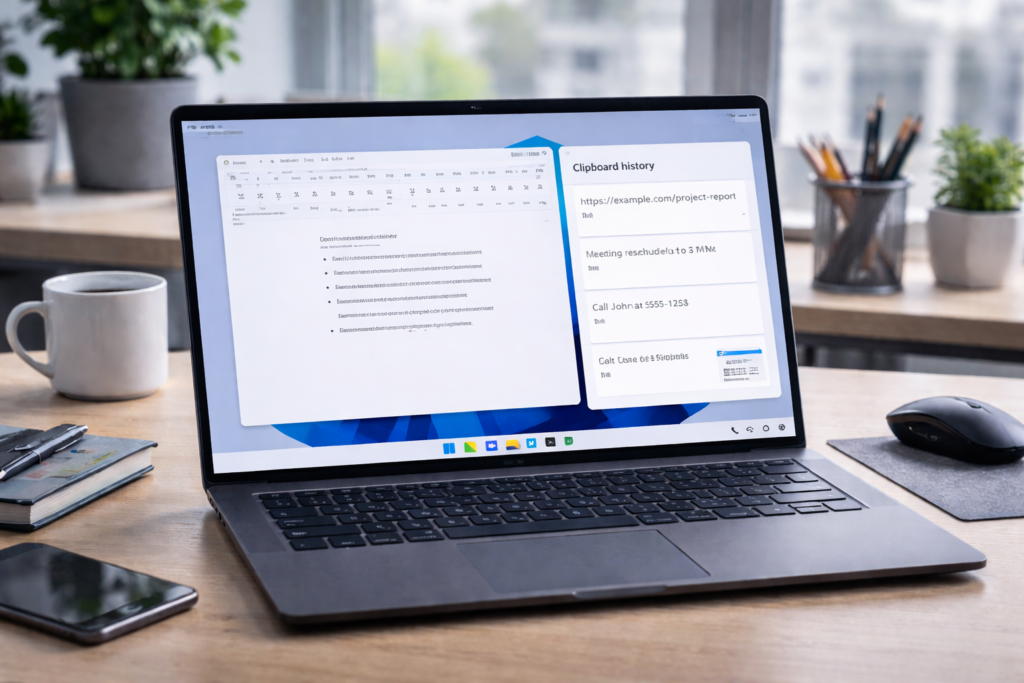
1. Clipboard History (Copy More Than One Item)
What Most Users Do
Users copy one item, paste it, then lose the previous copied text.
Hidden Feature
Windows can store multiple copied items.
How to Enable
Press Windows + V → Click Turn on
Real Scenario
You copy an email address, phone number, and paragraph text. Instead of switching back and forth, you paste everything from clipboard history.
- Saves time
- Works with text and images
2. Snap Layouts & Snap Groups
What It Does
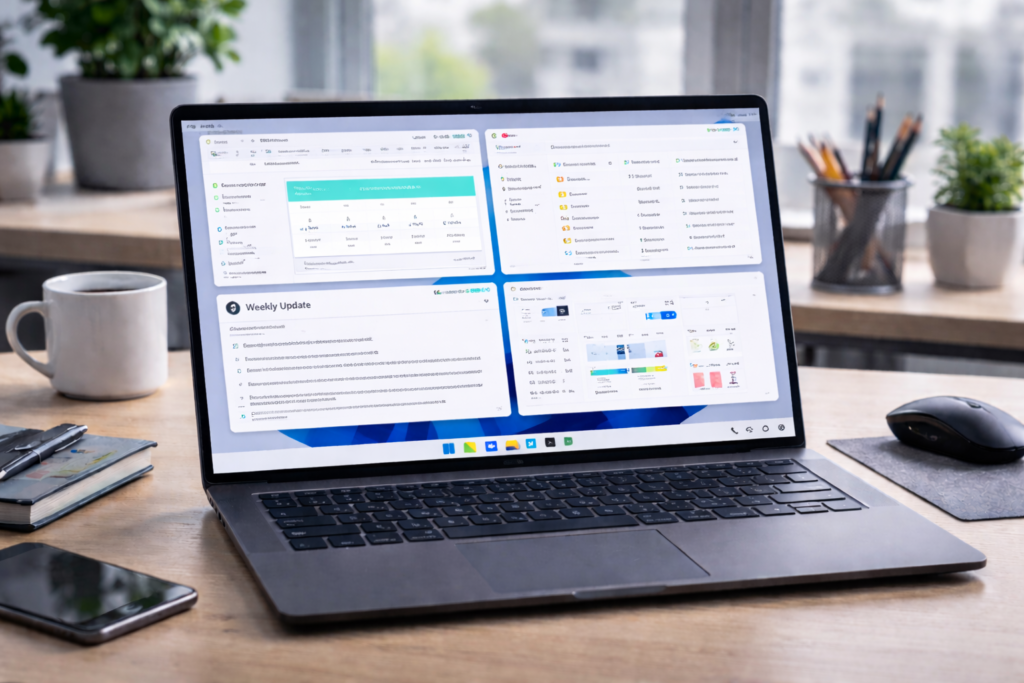
Snap Layouts let you arrange multiple windows perfectly on screen.
How to Use
Hover mouse over the maximize button of any window.
Real Scenario
Working on a document while watching a tutorial and browsing reference material—all perfectly aligned.
Ideal for multitasking
No third-party software needed
3. Hidden Emoji, Symbols & GIF Panel
How to Open
Press Windows + . (dot)
What You Get
- Emojis
- Symbols
- Kaomoji
- GIFs
Real Scenario
While chatting or writing content, you quickly insert emojis or symbols without searching online.
Perfect for emails, blogs, and social media.
4. Focus Assist (Hidden Productivity Booster)
What It Does
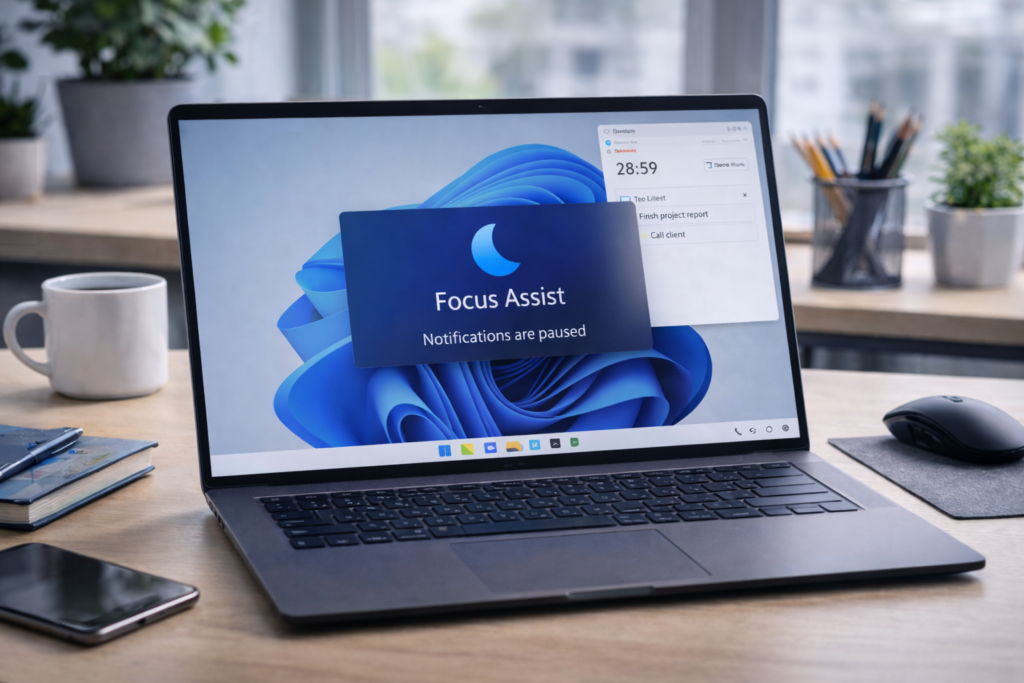
Silences notifications when you need concentration.
Where to Find
Settings → System → Focus assist
Real Scenario
During online meetings or study sessions, notifications stop distracting you.
- Improves productivity
- Reduces interruptions
5. Hidden Screenshot Tools (More Than Print Screen)
Keyboard Shortcuts
- Windows + Shift + S → Advanced screenshot tool
- Print Screen → Full screen capture
Real Scenario
You capture only the required portion of the screen instead of cropping later.
- Saves editing time
- Built-in tool
6. Nearby Sharing (Wireless File Transfer)
What It Does
Share files between nearby Windows PCs wirelessly.
Where to Enable
Settings → System → Nearby sharing
Real Scenario
Send documents from one laptop to another without pendrive or email.
- Fast
- Secure
- No internet needed
7. Storage Sense (Automatic Disk Cleaner)
Hidden Feature
Windows can clean junk files automatically.
Enable From
Settings → System → Storage → Storage Sense
Real Scenario
Your C drive never gets full because Windows cleans temporary files automatically.
- Improves performance
- Zero effort
8. Windows Sandbox (Test Software Safely)
What It Is
A temporary Windows environment that resets after closing.
Use Case
Testing unknown software without affecting your main system.
Real Scenario
You want to test a new tool but don’t trust it completely.
Available in Pro editions.
9. God Mode (All Settings in One Place)
How to Enable
- Create a new folder
- Rename it to:
GodMode.{ED7BA470-8E54-465E-825C-99712043E01C}
What It Does
Gives access to all Windows settings in one folder.
Real Scenario
Advanced users manage system settings faster.
10. File History (Automatic Backup)
Hidden Backup Tool
Automatically backs up files to external drive.
Enable From
Settings → Update & Security → Backup
Real Scenario
Accidentally deleted files are restored easily.
- Protects data
- Simple setup
11. Virtual Desktops (Multiple Workspaces)
Shortcut
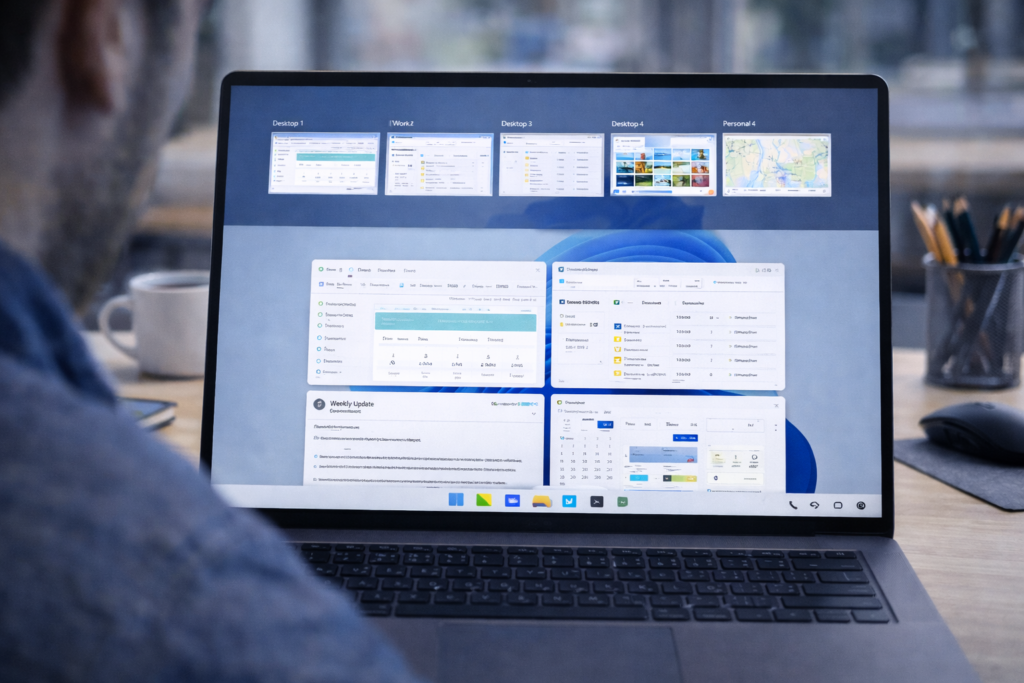
Windows + Tab → New desktop
Real Scenario
One desktop for work, one for browsing, one for entertainment.
- Keeps work organized
- Reduces clutter
12. Hidden Mouse & Touchpad Settings
Where
Settings → Bluetooth & devices → Mouse
What You Can Adjust
- Scroll direction
- Cursor speed
- Precision
Real Scenario
Customize mouse behavior for comfort and accuracy.
13. Built-in Voice Typing
Shortcut
Windows + H
Real Scenario
Dictate emails or documents instead of typing manually.
- Saves time
- Useful for accessibility
14. Hidden Power User Menu
Shortcut
Windows + X
What It Shows
- Device Manager
- Disk Management
- Terminal
- Power options
Real Scenario
Quick access to system tools without Control Panel.
15. Windows Reliability Monitor
Hidden Diagnostic Tool
Shows system stability history.
How to Open
Search Reliability Monitor
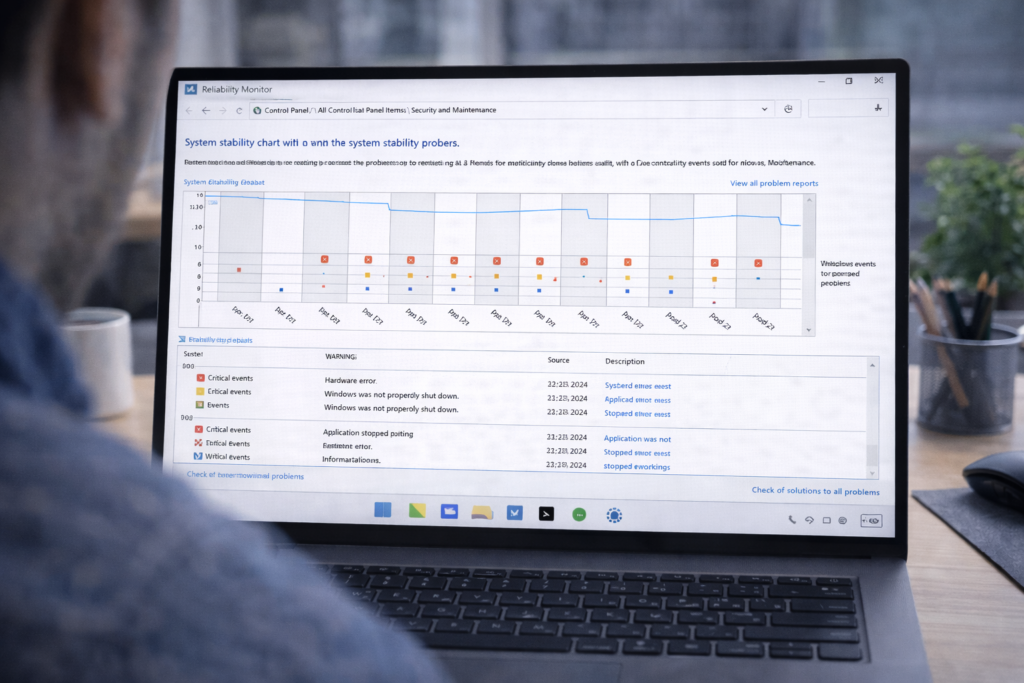
Real Scenario
Identify which app caused crashes or freezes.
- Helps troubleshooting
- Clear visual timeline
16. One-Click Reset This PC (Without Data Loss)
Where
Settings → System → Recovery
Option
Keep my files
Real Scenario
System becomes slow; reset Windows without losing documents.
17. Windows Security Protection History
Hidden Feature
Shows blocked threats and actions taken.
Path
Windows Security → Protection history
Real Scenario
Verify if Windows blocked a malicious file.
- Transparency
- Security awareness
18. Automatic Time & Location Sync
Hidden Convenience
Keeps system time accurate automatically.
Path
Settings → Time & Language
Real Scenario
Avoid login and certificate errors due to wrong system time.
19. Built-in Screen Recording (Xbox Game Bar)
Shortcut
Windows + G
Real Scenario
Record tutorials, errors, or gameplay instantly.
- No watermark
- Free tool
20. Hidden Network Reset Option
Where
Settings → Network → Advanced → Network reset
Real Scenario
Fix Wi-Fi issues without reinstalling Windows.
Frequently Asked Questions (FAQs)
Q1: Are these features safe?
Yes. All are official Windows features.
Q2: Do hidden features slow down PC?
No. Most improve performance.
Q3: Are third-party tools needed?
No. Everything here is built-in.
Frequently Asked Questions
This website provides beginner-friendly guides on computers, software, mobile apps, and cyber safety.
Yes. All articles are written in simple language with real-life examples and step-by-step explanations.
Yes, all content on this website is completely free for learning and educational purposes.