Introduction
Windows is one of the most widely used operating systems in the world, but no matter how powerful your computer is, problems and errors are unavoidable. From slow performance to Wi-Fi issues, boot errors, sound problems, and update failures—Windows users face issues almost daily.
The good news is that most Windows problems can be fixed easily without visiting a technician or reinstalling Windows. You just need to understand the issue and apply the correct solution.
This guide explains the most common Windows problems and their real-world fixes, written in simple language, so even beginners can follow step by step.
1. Windows PC Running Slow
Real Scenario
Your computer was fast when new, but after months of use it takes too long to start, apps open slowly, and everything feels laggy.

Common Causes
- Too many startup programs
- Low disk space
- Background apps
- Outdated system
Fixes
- Disable unnecessary startup apps
- Clean temporary files
- Uninstall unused programs
- Restart PC regularly
Quick Tip
Open Task Manager → Startup Apps and disable apps you don’t need at startup.
2. Windows Won’t Boot Properly
Real Scenario
You turn on your PC and see a black screen, automatic repair loop, or Windows stuck on loading.
Possible Causes
- Corrupted system files
- Failed Windows update
- Power interruption
Fixes
- Restart and wait
- Use Startup Repair
- Boot into Safe Mode
- Run system repair tools
Command (Advanced Users)
sfc /scannow
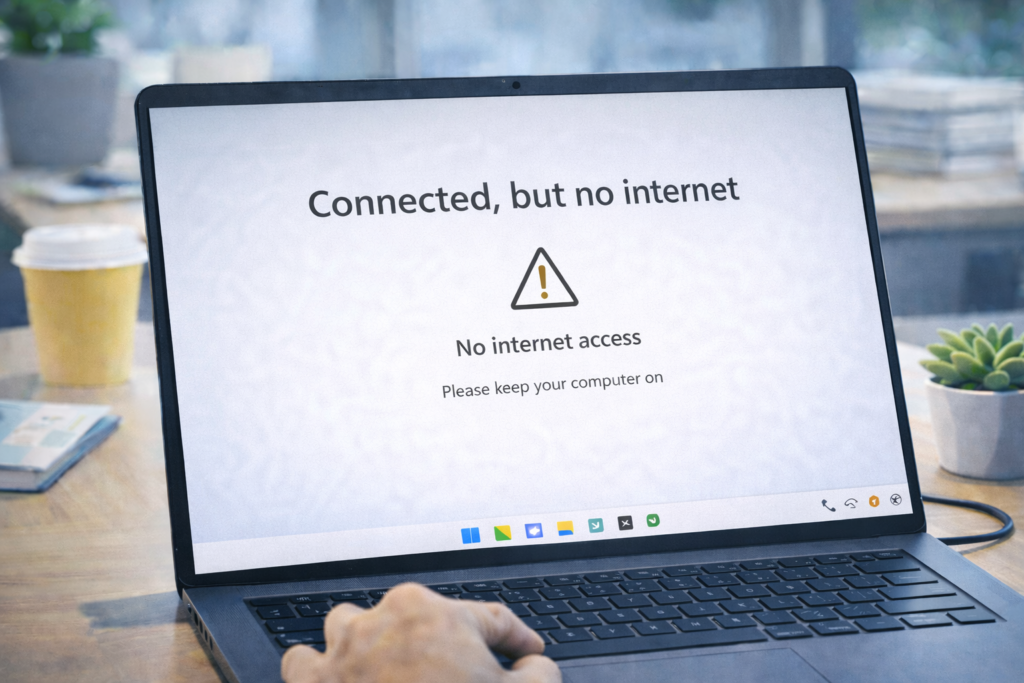
3. Internet Connected but No Internet Access
Real Scenario
Wi-Fi shows “Connected” but websites don’t load.
Common Causes
- Router issue
- DNS problems
- Network driver errors
Fixes
- Restart router and PC
- Forget and reconnect Wi-Fi
- Reset network settings
Quick Fix Steps
- Go to Settings → Network & Internet
- Click Advanced network settings
- Select Network reset
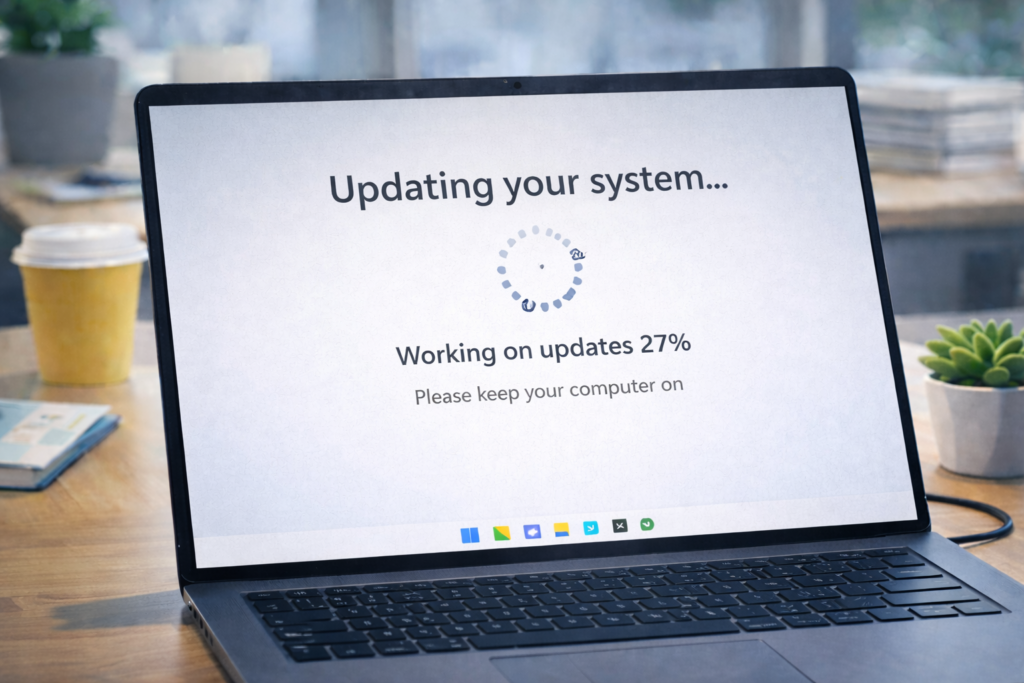
4. Windows Update Stuck or Failing
Real Scenario
Windows update stays at 0%, 20%, or fails repeatedly.
Common Causes
- Low storage space
- Corrupted update cache
- Interrupted downloads
Fixes
- Free disk space
- Restart Windows Update service
- Use built-in troubleshooter
Steps
- Open Settings → System → Troubleshoot
- Click Other troubleshooters
- Run Windows Update
5. Sound Not Working in Windows
Real Scenario
Speakers or headphones are connected, but no sound is coming.
Possible Causes
- Wrong output device selected
- Disabled sound service
- Driver issue
Fixes
- Check volume mixer
- Select correct output device
- Restart audio services
Quick Check
Right-click speaker icon → Sound settings → Choose correct output device.
6. Windows Freezes or Becomes Unresponsive
Real Scenario
Mouse stops moving, screen freezes, and nothing responds.
Common Causes
- Low RAM
- Overheating
- Background processes
Fixes
- Force restart
- Close heavy programs
- Clean system vents
Prevention
- Avoid running many apps together
- Keep system cool
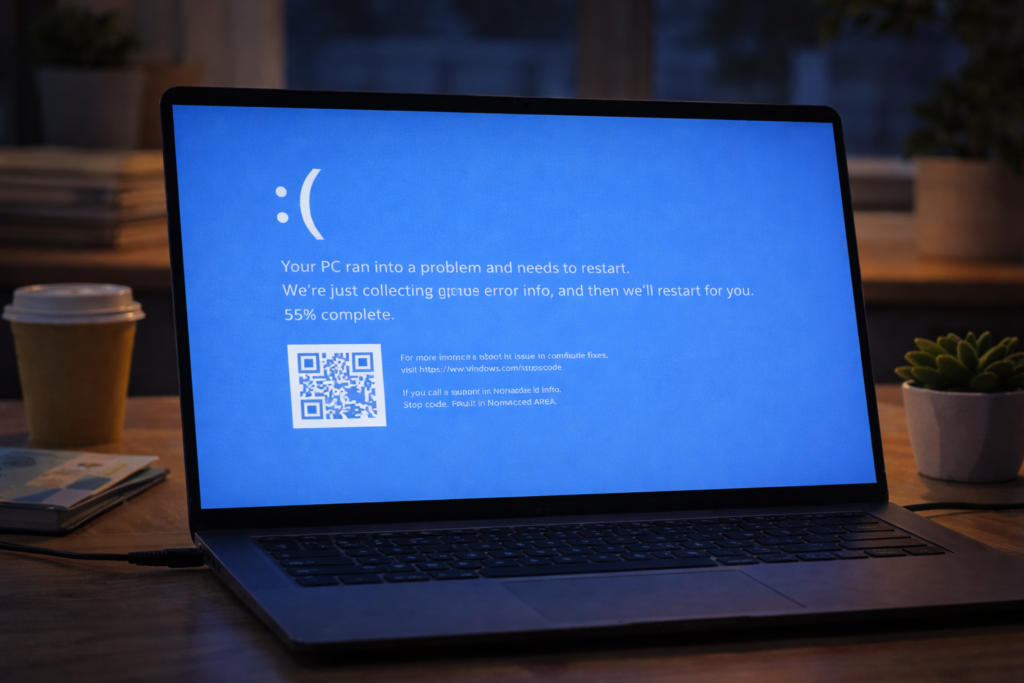
7. Blue Screen of Death (BSOD)
Real Scenario
Sudden blue screen appears and PC restarts automatically.
Common Causes
- Driver conflicts
- Hardware issues
- System file corruption
Fixes
- Note error code
- Update drivers
- Run memory and disk check
Important Command
chkdsk /f
8. USB Device Not Recognized
Real Scenario
USB drive or external device doesn’t appear on PC.
Possible Causes
- Faulty USB port
- Driver problem
- Power issue
Fixes
- Try different USB port
- Restart PC
- Update USB drivers
Avoid plugging unknown USB devices for security reasons.
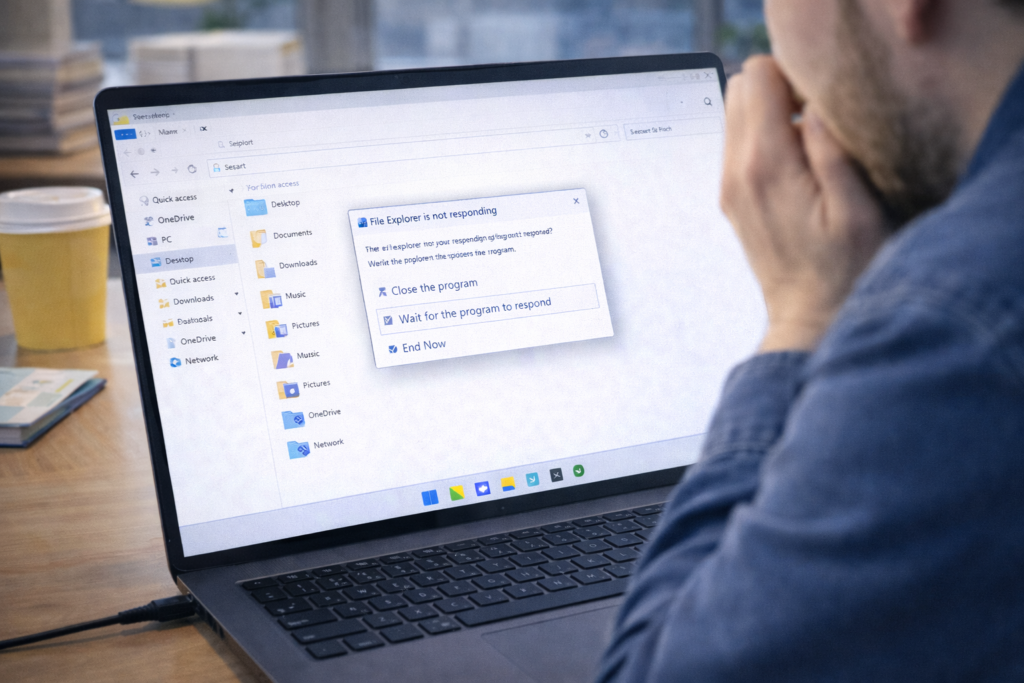
9. File Explorer Not Responding
Real Scenario
File Explorer opens but hangs or crashes.
Fixes
- Restart File Explorer
- Clear Quick Access history
- Check disk for errors
Steps
- Open Task Manager
- Select Windows Explorer
- Click Restart
10. Storage Space Suddenly Full
Real Scenario
C drive shows full even though few files are visible.
Causes
- Temporary files
- Windows update cache
- Recycle Bin
Fixes
- Run Storage Sense
- Clean temporary files
- Empty Recycle Bin
Path to Check
Settings → System → Storage
11. Apps Not Opening or Crashing
Real Scenario
Installed apps open and close immediately.
Causes
- Corrupt app files
- Compatibility issue
- Missing updates
Fixes
- Restart PC
- Update app
- Reinstall app
Avoid cracked or unofficial apps.
12. Keyboard or Mouse Not Working
Real Scenario
Keyboard or mouse suddenly stops responding.
Fixes
Reconnect device
Replace batteries
Restart PC
If USB Device
Try another USB port or device.
13. Overheating & Automatic Shutdown
Real Scenario
Laptop becomes very hot and shuts down automatically.
Causes
- Dust in vents
- High CPU usage
- Poor airflow
Fixes
- Clean vents
- Use laptop on flat surface
- Close heavy applications
14. System Time & Date Wrong
Real Scenario
Time resets every time PC restarts.
Fixes
- Sync time automatically
- Replace CMOS battery (desktop PCs)
Steps
Settings → Time & Language → Date & Time → Sync
15. Windows Security Not Opening
Real Scenario
Windows Security app fails to open.
Fixes
- Restart Windows Security services
- Check system updates
- Run system file check
Security tools must always remain active.
Frequently Asked Questions (FAQs)
Q1: Do I need third-party repair software?
No. Built-in Windows tools are enough for most problems.
Q2: Should I reinstall Windows for every issue?
No. Reinstall only as last option.
Q3: How often should I troubleshoot PC?
Whenever you notice unusual behavior.
Frequently Asked Questions
This website provides beginner-friendly guides on computers, software, mobile apps, and cyber safety.
Yes. All articles are written in simple language with real-life examples and step-by-step explanations.
Yes, all content on this website is completely free for learning and educational purposes.