Introduction
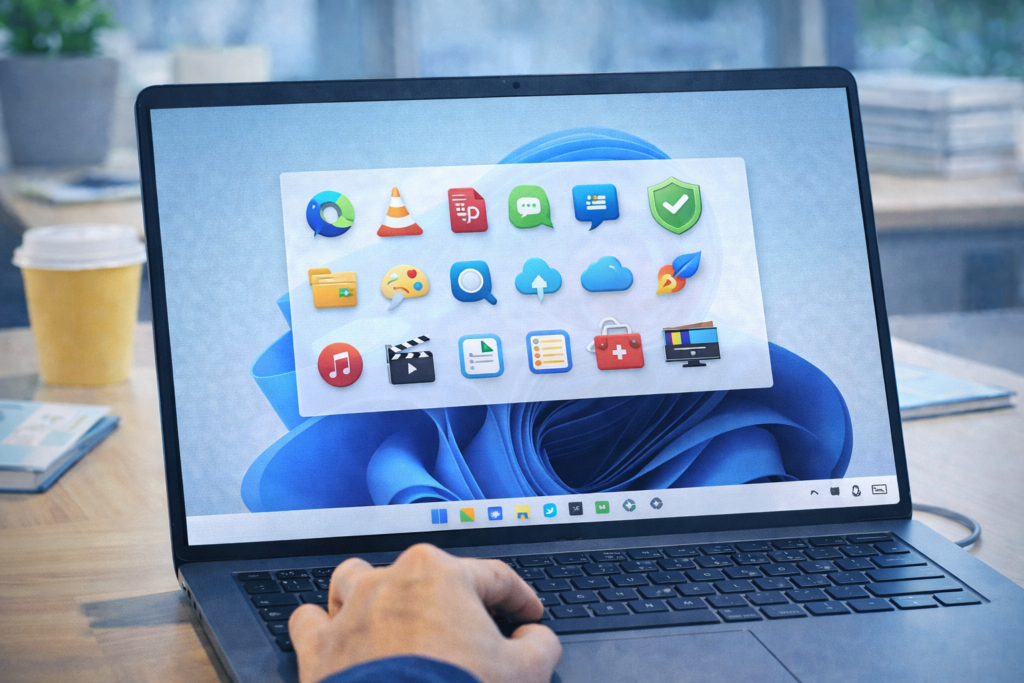
A Windows computer is only as powerful as the software installed on it. Many users either rely only on default tools or install unnecessary paid software without knowing that excellent free alternatives already exist.
Free software today is secure, feature-rich, and suitable for students, office users, freelancers, and home users. When chosen wisely, these tools can improve productivity, security, performance, and everyday computer usage without spending any money.
In this guide, you will discover the best free software and tools every Windows PC user must follow and use, explained in simple language with real usage scenarios. All tools mentioned are legal, trusted, and AdSense-safe.
1. Web Browser: Google Chrome / Microsoft Edge
Why It’s Essential
A web browser is the most used software on any PC. A slow or outdated browser affects everything—from browsing speed to online security.
Real Scenario
A user with an outdated browser experiences frequent crashes and unsafe website warnings. Updating or switching to a modern browser instantly improves performance and safety.
Benefits
- Fast browsing
- Regular security updates
- Extension support
- Sync across devices
Best Practice
- Keep browser updated
- Remove unnecessary extensions
- Use built-in password and security checks
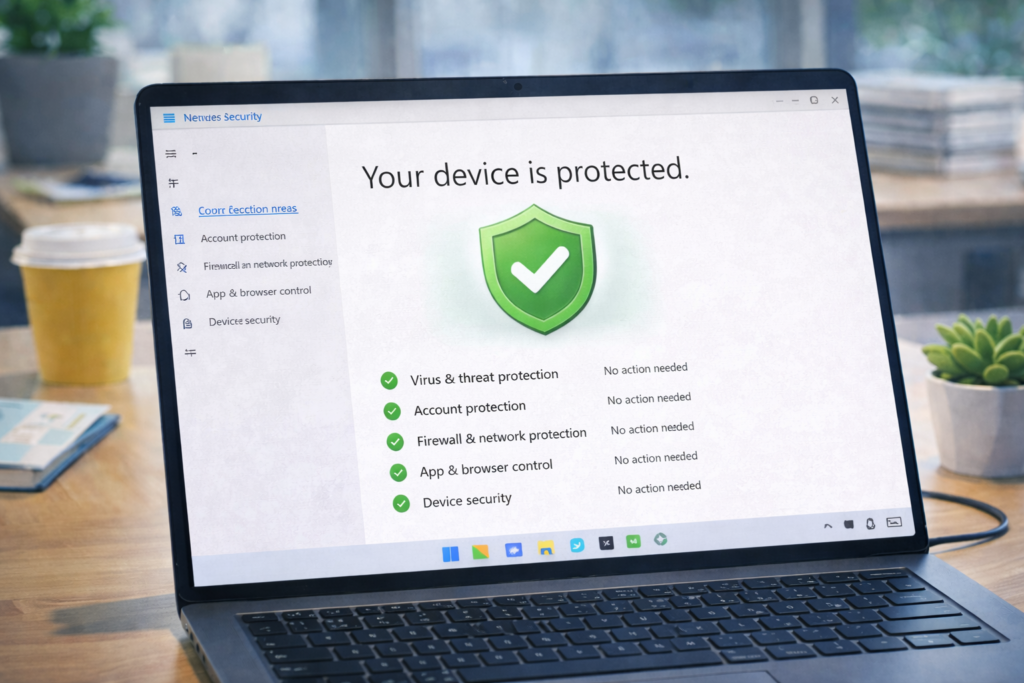
2. Antivirus & Security: Windows Security (Microsoft Defender)
Why It’s Essential
Every Windows PC needs protection against viruses, ransomware, and malicious software.
Real Scenario
A user downloads a “free tool” from an unknown site. Windows Security immediately blocks the threat before it installs.
Key Features
- Real-time protection
- Firewall control
- Ransomware protection
- Automatic updates
No need for paid antivirus for most users.
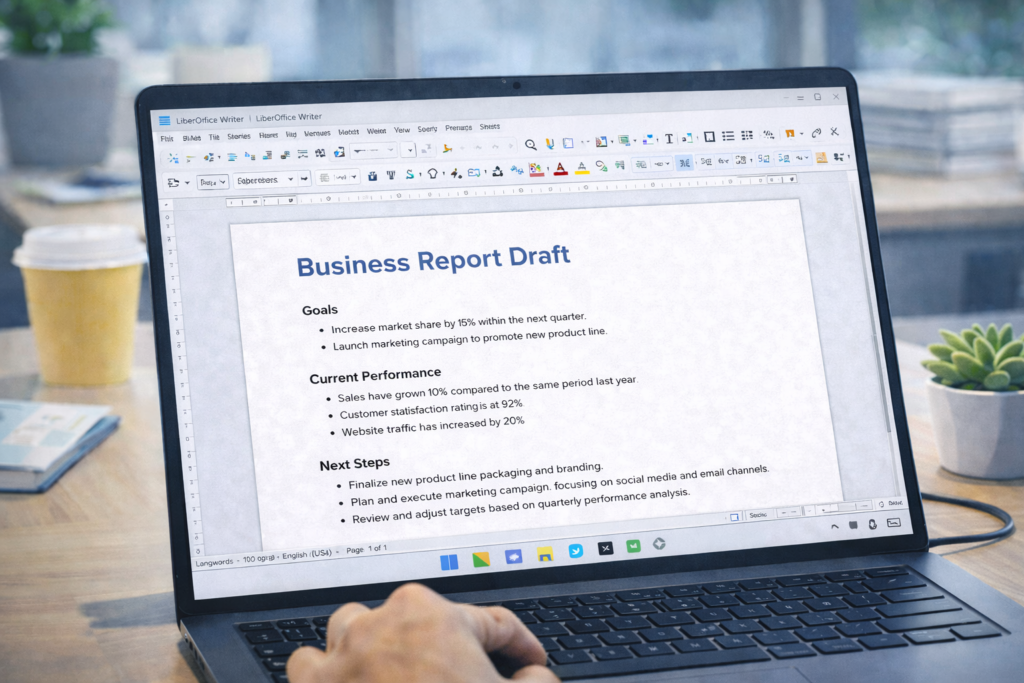
3. Office Work: LibreOffice
Why It’s Essential
Office work is part of daily computer usage—documents, spreadsheets, and presentations.
Real Scenario
A student cannot afford paid office software. LibreOffice allows creating assignments, projects, and reports without limitations.
Includes
- Writer (Word alternative)
- Calc (Excel alternative)
- Impress (PowerPoint alternative)
Supports Microsoft Office file formats.
4. PDF Management: PDF24 Creator
Why It’s Essential
PDFs are everywhere—forms, resumes, bills, and manuals.
Real Scenario
An office user needs to merge multiple PDFs and compress files for email. PDF24 does this instantly for free.
Features
- Merge PDFs
- Compress files
- Convert Word to PDF
- Offline usage
No watermark, no signup required.
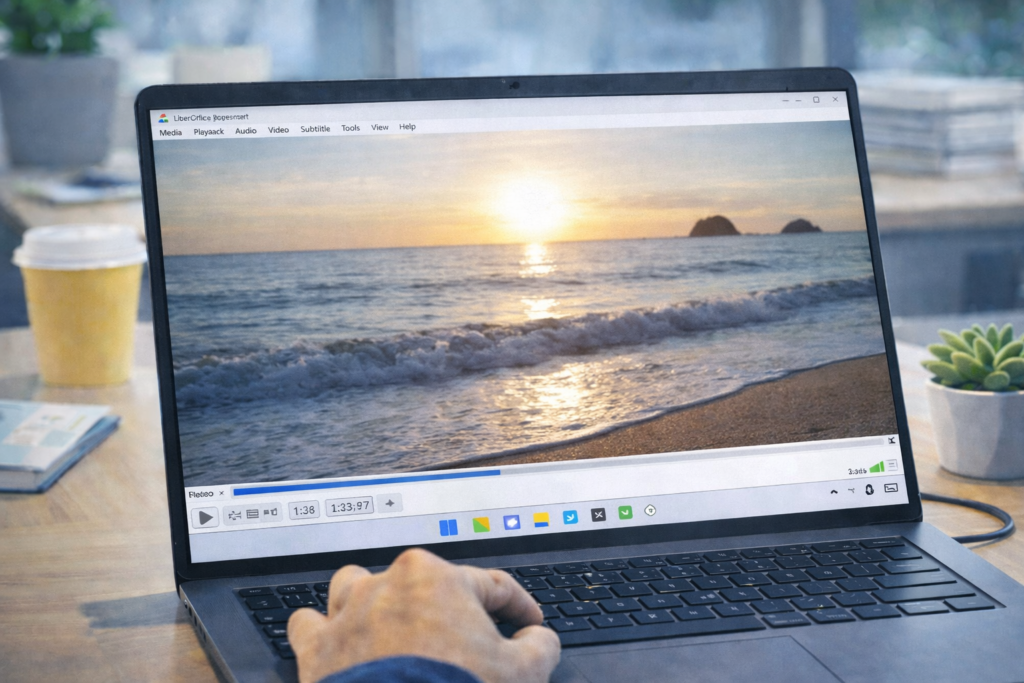
5. Media Player: VLC Media Player
Why It’s Essential
Default media players often fail to open certain video or audio formats.
Real Scenario
A downloaded video does not play on default player. VLC opens it without any additional codecs.
Advantages
- Supports almost all formats
- Lightweight
- No ads
- No spyware
Perfect for movies, tutorials, and audio files.
6. File Compression: 7-Zip
Why It’s Essential
Compressed files save storage and make file sharing easier.
Real Scenario
A user downloads a .zip or .rar file and cannot open it. 7-Zip handles it instantly.
Features
- Extract ZIP, RAR, 7Z
- High compression ratio
- Free and open-source
7. Cloud Storage: Google Drive (Free Tier)
Why It’s Essential
Data loss can happen anytime—hardware failure, malware, or accidental deletion.
Real Scenario
A laptop crashes suddenly, but documents are safe because they were backed up to cloud storage.
Benefits
- 15GB free storage
- File sync across devices
- Easy sharing
Always log out on shared computers.
8. Screenshot & Screen Recording: ShareX
Why It’s Essential
Screenshots and recordings are required for tutorials, office communication, and troubleshooting.
Real Scenario
An IT support user records a screen issue and shares it with support instead of explaining verbally.
Features
- Screenshot tools
- Screen recording
- Custom hotkeys
- No watermark
Best for professionals and learners.
9. System Cleaning: Windows Storage Sense
Why It’s Essential
Temporary files slow down systems over time.
Real Scenario
A PC with low disk space becomes slow. Enabling Storage Sense clears junk files automatically.
Benefits
- Removes temp files
- Clears recycle bin
- No third-party cleaner needed
Avoid risky “PC cleaner” software.
10. Password Management: Browser Password Manager
Why It’s Essential
Weak passwords cause most security breaches.
Real Scenario
A user forgets passwords and reuses the same one everywhere. Browser password manager creates and stores strong passwords safely.
Benefits
Auto-fill passwords
Strong password suggestions
Encrypted storage
Enable two-factor authentication for safety.
11. File Search Tool: Everything Search
Why It’s Essential
Windows search can be slow on older systems.
Real Scenario
A user finds a file in seconds using Everything instead of waiting minutes.
Advantages
- Instant search results
- Lightweight
- No system impact
Best for large drives.
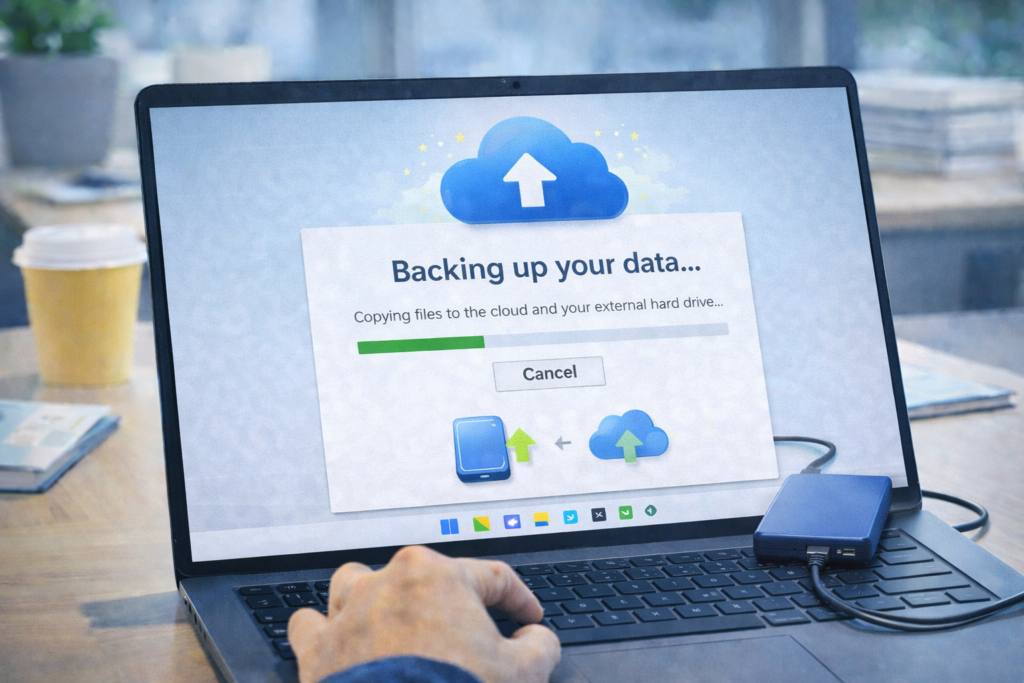
12. Backup Tool: Windows Backup & Restore
Why It’s Essential
Backups protect against ransomware and system failure.
Real Scenario
A system gets corrupted after update. User restores data from backup and continues work.
Best Practice
- Weekly backups
- External drive or cloud
- Test restore occasionally
13. Video Conferencing: Zoom / Google Meet
Why It’s Essential
Remote meetings and online classes are common.
Real Scenario
Students attend online classes and office users join meetings without technical issues.
Tips
- Keep software updated
- Use headset for clarity
- Secure meeting links
14. File Sharing: Nearby Sharing / Email Attachments
Why It’s Essential
Quick file sharing improves productivity.
Real Scenario
A user transfers files between PC and phone without cables using Nearby Sharing.
Benefits
- Wireless transfer
- Secure connection
- Fast sharing
15. Software Update Habit (Most Important)
Real Scenario
An outdated software becomes the entry point for malware.
Best Practice
- Enable auto-updates
- Remove unused software
- Download only from official websites
Software hygiene = system safety.
Frequently Asked Questions (FAQs)
Q1: Is free software safe?
Yes, if downloaded from official sources.
Q2: Can free software replace paid tools?
For most users, yes.
Q3: Should I install many tools?
No. Install only what you actually use.
Frequently Asked Questions
This website provides beginner-friendly guides on computers, software, mobile apps, and cyber safety.
Yes. All articles are written in simple language with real-life examples and step-by-step explanations.
Yes, all content on this website is completely free for learning and educational purposes.