Introduction
Windows 11 is a powerful and modern operating system, but many users experience slow performance after updates, long-term usage, or on low-end PCs. If your Windows 11 laptop or desktop has become slow, laggy, or unresponsive, you are not alone.
The good news is that you do not need any third-party software to fix this problem. Windows 11 already includes powerful built-in tools that can significantly improve performance if used correctly.
In this complete guide, you will learn step-by-step methods to speed up Windows 11 safely, even if you are a beginner. All methods are tested, safe, and AdSense-friendly.
1. Restart Your PC Regularly (Simple but Effective)
Many users keep their PCs running for weeks without restarting. This causes background processes to pile up and slow the system.
Why restarting helps:
- Clears RAM
- Stops stuck background processes
- Applies pending system optimizations
Best practice:
Restart your PC at least once every 2–3 days
2. Disable Startup Programs to Boost Boot Speed
Some apps automatically start when Windows boots, slowing down startup time and system performance.
Steps to disable startup apps:
- Press Ctrl + Shift + Esc (Task Manager)
- Click Startup apps
- Disable apps you don’t need at startup
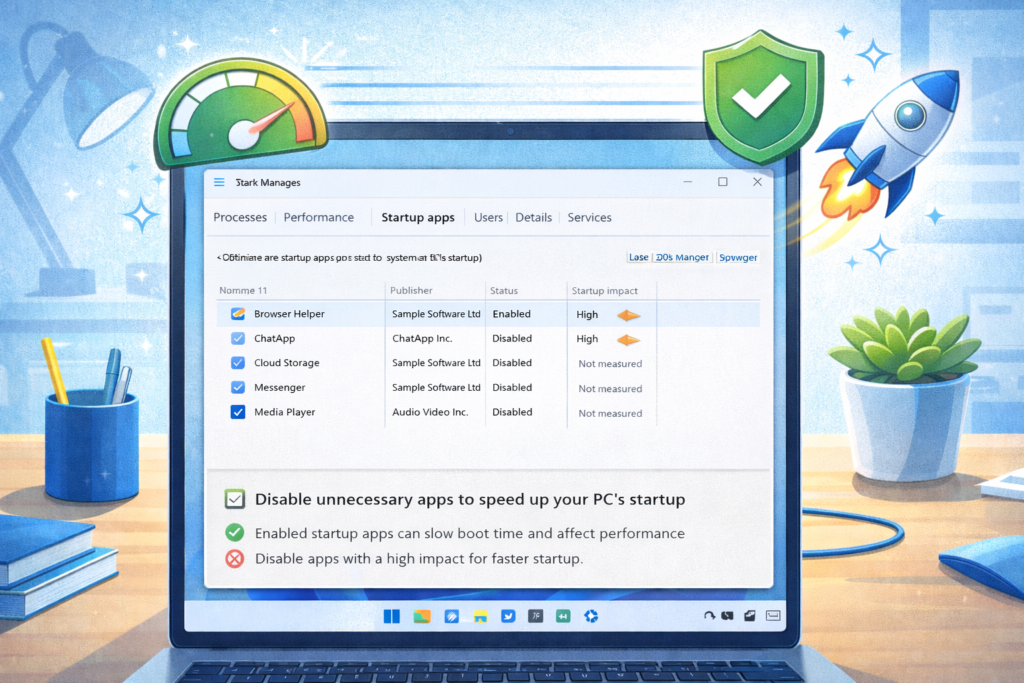
Recommended to disable:
- Media players
- Auto updaters
- Unused cloud apps
Note: Do NOT disable antivirus or system apps
3. Turn Off Background Apps You Don’t Use
Many apps run in the background even when you are not using them.
Steps:
- Go to Settings → Apps → Installed apps
- Select an app
- Click Advanced options
- Set Background apps permissions → Never
This reduces:
- CPU usage
- RAM usage
- Battery drain
4. Adjust Visual Effects for Better Performance
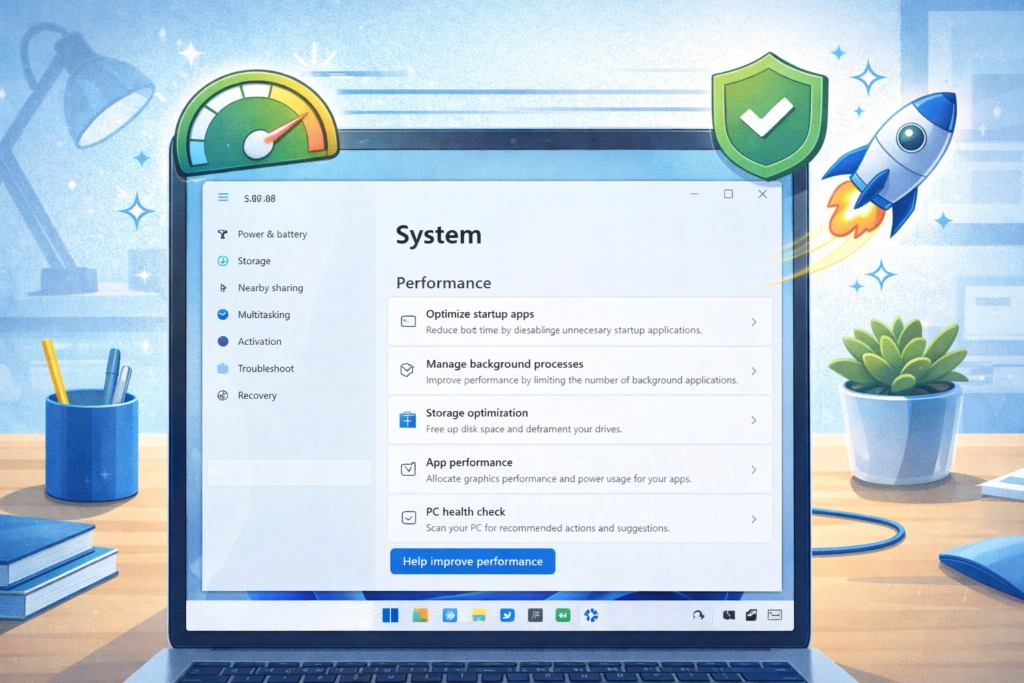
Windows 11 uses animations and visual effects that look good but consume system resources.
Steps:
- Press Windows + R
- Type
sysdm.cpl→ Enter - Go to Advanced → Performance → Settings
- Select Adjust for best performance
- Click Apply
- You can also manually enable:
- Smooth fonts
- Thumbnails instead of icons
5. Clean Temporary Files Safely
Temporary files accumulate over time and slow down Windows.
Method 1: Using Storage Sense
- Go to Settings → System → Storage
- Turn ON Storage Sense
- Click Run Storage Sense now
Method 2: Disk Cleanup
- Press Windows + S
- Search Disk Cleanup
- Select system drive (C:)
- Check:
- Temporary files
- Recycle Bin
- Thumbnails
- Click OK
6. Uninstall Unnecessary Programs
Unused programs waste storage and system resources.
Steps:
- Go to Settings → Apps → Installed apps
- Sort by Size
- Uninstall apps you no longer use
Avoid uninstalling:
- Microsoft Visual C++
- System drivers
- Windows components
7. Set Power Mode to Best Performance
Power mode affects system speed.
Steps:
- Open Settings → System → Power & battery
- Under Power mode, select Best performance
This is especially useful for laptops connected to power.
8. Keep Windows Updated (But Smartly)
Updates improve security and performance, but incomplete updates can cause lag.
Steps:
- Go to Settings → Windows Update
- Click Check for updates
- Install all available updates
- Restart your PC
- Updates fix bugs
- Improve stability
- Enhance security
9. Check for Malware Using Windows Security
Viruses and malware can slow down your PC badly.
Steps:
- Open Windows Security
- Click Virus & threat protection
- Select Quick scan
- Run Full scan if needed
Windows Defender is powerful and free—no extra antivirus required.
10. Disable Tips, Notifications & Background Suggestions
Windows notifications and tips consume resources.
Steps:
- Go to Settings → System → Notifications
- Turn OFF:
- Tips and suggestions
- Suggested content
- App notifications you don’t need
11. Reduce Search Indexing Load
Windows Search indexing can slow older PCs.
Steps:
- Go to Settings → Privacy & security → Searching Windows
- Select Classic
- Exclude folders like:
- Downloads
- Videos
- Large archives
12. Check Disk Health (Very Important)
Bad sectors can slow down Windows.
Steps:
- Open Command Prompt as Administrator
- Run:
chkdsk /f
- Restart if prompted
This fixes file system errors automatically.
13. Free Up RAM Without Software
Tips:
- Close unused browser tabs
- Use one browser at a time
- Avoid heavy widgets
You can also:
- Press Windows + W
- Disable unused widgets
14. Reset Windows (Last Option)
If your PC is still slow, resetting Windows can help.
Steps:
- Go to Settings → System → Recovery
- Click Reset this PC
- Choose Keep my files
Backup important data first.
Frequently Asked Questions (FAQs)
Q1: Can Windows 11 run smoothly on 4GB RAM?
Yes, but performance improves significantly with 8GB RAM.
Q2: Is third-party optimizer software safe?
Most are unnecessary and sometimes harmful. Built-in tools are enough.
Q3: How often should I clean temporary files?
Once every 1–2 weeks is ideal.
Frequently Asked Questions
This website provides beginner-friendly guides on computers, software, mobile apps, and cyber safety.
Yes. All articles are written in simple language with real-life examples and step-by-step explanations.
Yes, all content on this website is completely free for learning and educational purposes.