Introduction
In today’s digital world, cyber security is no longer optional—it is essential. Every computer user, whether a student, office employee, business owner, or home user, is exposed to online threats daily. Hackers, malware, phishing scams, ransomware, and data theft are increasing every year.
Many people believe cyber attacks only happen to large companies, but the truth is individual users are the primary targets. A weak password, unsafe download, or careless click is enough to compromise an entire system.
This guide explains essential cyber security tips that every computer user must follow, using real-life scenarios and practical steps that anyone can understand and apply.
1. Use Strong and Unique Passwords Everywhere
Real Scenario:
A user uses the same password for email, Facebook, and banking. When one website is hacked, attackers gain access to all accounts.
Best Practices:
- Use different passwords for each account
- Minimum 12 characters
- Include uppercase, lowercase, numbers, and symbols
Example of a strong password:
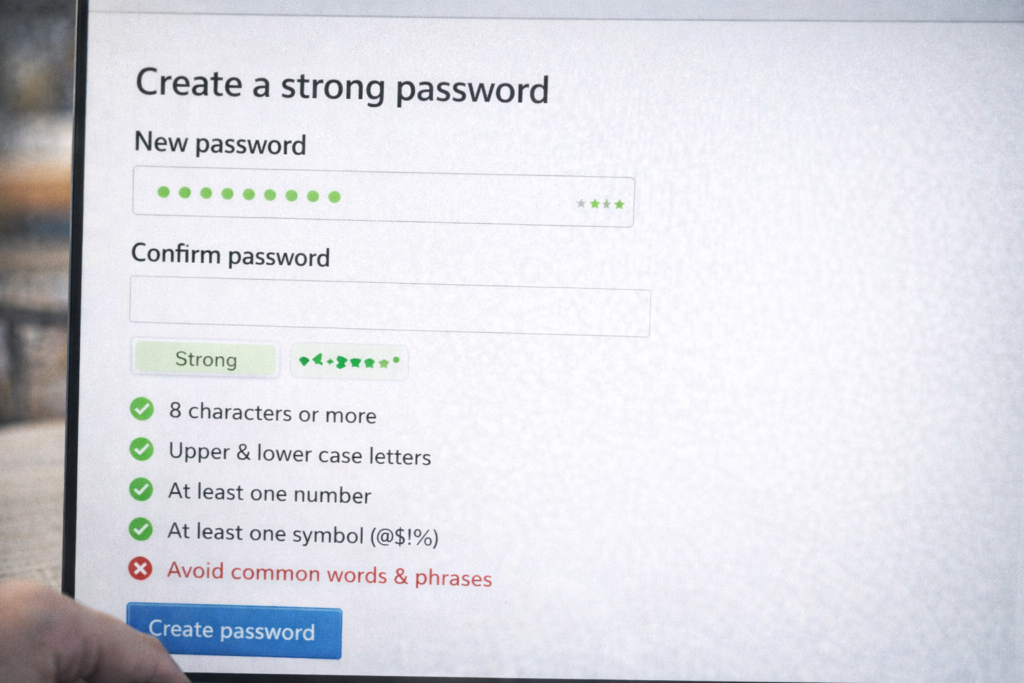
combine random words with numbers/symbols
(e.g I<3MyDog_S5! )
Avoid:
- Your name
- Birthdate
- Mobile number
- “123456” or “password”
2. Enable Two-Factor Authentication (2FA)
Real Scenario:
Even if hackers steal your password, 2FA stops them because they cannot access your phone or email.
Where to enable 2FA:
- Email accounts
- Social media
- Cloud storage
- Banking and payment apps
Types of 2FA:
- OTP via SMS
- Authenticator apps
- Email verification
This single step blocks 90% of account hacking attempts.
3. Keep Windows and Software Updated
Real Scenario:
Many cyber attacks exploit old system vulnerabilities that already have security patches.
What to update:
- Windows OS
- Browsers (Chrome, Edge, Firefox)
- Office software
- Drivers
Steps:
- Open Settings → Windows Update
- Enable automatic updates
- Restart regularly
Delayed updates = security risk.
4. Avoid Clicking Unknown Links and Attachments
Real Scenario:
A fake email claims “Your account will be blocked today.” The attached file contains malware.
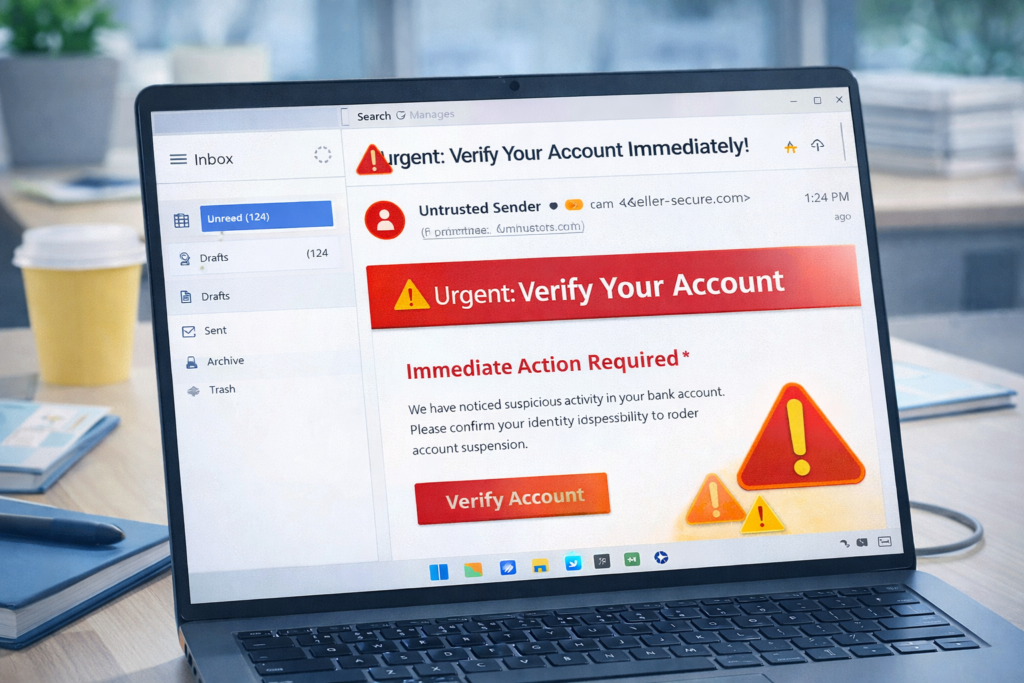
Red flags:
- Urgent threats
- Unknown sender
- Spelling mistakes
- Suspicious links
Safety Rule:
- Never click links from unknown emails
- Hover over links before clicking
- Verify sender address carefully
5. Use Built-In Antivirus (Windows Security)
You don’t need expensive antivirus software. Windows already includes Microsoft Defender, which is powerful and free.
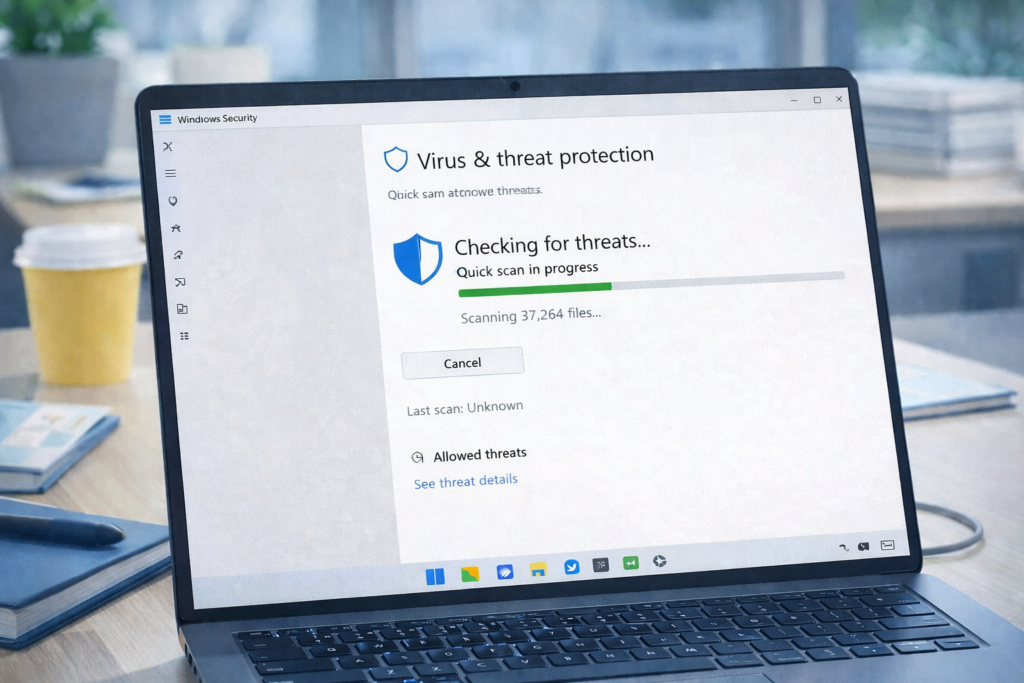
Steps to check protection:
- Open Windows Security
- Ensure:
- Virus & threat protection: ON
- Real-time protection: ON
- Firewall: ON
Real Scenario:
A user downloads a cracked software file. Defender blocks it instantly before damage.
6. Download Software Only from Trusted Sources
Real Scenario:
Free software websites often bundle malware with installers.
Safe sources:
- Official websites
- Microsoft Store
- Well-known developers
Avoid:
- Cracked software
- Torrent downloads
- Unknown “free tools”
Using pirated software is illegal AND dangerous.
7. Secure Your Internet Browser
Your browser is the most targeted application.
Browser security tips:
- Keep browser updated
- Install only necessary extensions
- Remove unused add-ons
Real Scenario:
A malicious browser extension tracks keystrokes and steals passwords.
Recommended:
- Review extensions monthly
- Remove suspicious permissions
8. Be Careful on Public Wi-Fi
Real Scenario:
Public Wi-Fi at cafes or airports allows attackers to intercept data.
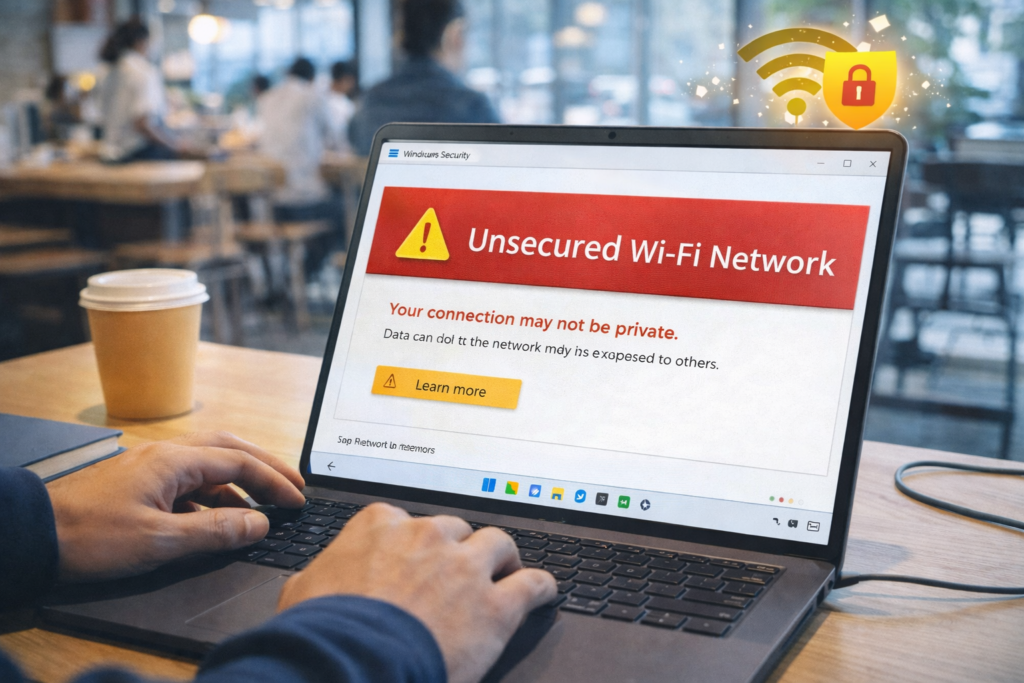
Do NOT do on public Wi-Fi:
- Online banking
- Password changes
- Business logins
Safe practice:
- Use mobile hotspot when possible
- Log out after usage
- Avoid sensitive activities
9. Lock Your Computer When Away
Real Scenario:
An unlocked PC in office allows someone to copy files or install malware.
Steps:
- Press Windows + L when leaving desk
- Set auto-lock after 5–10 minutes
This prevents unauthorized access instantly.
10. Backup Your Data Regularly
Real Scenario:
Ransomware encrypts files and demands money.
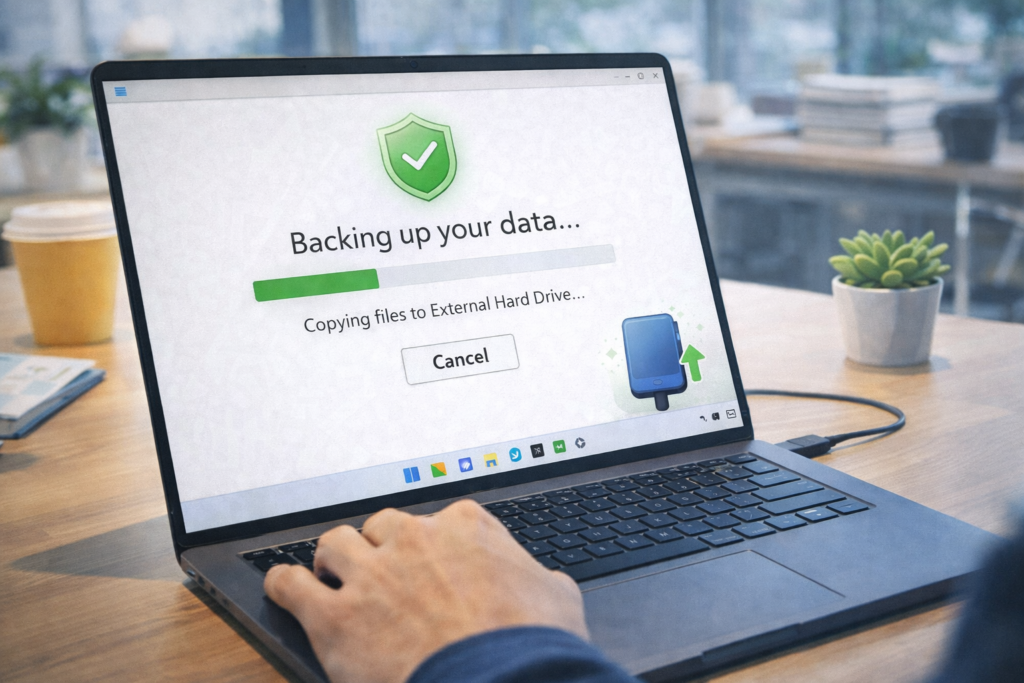
Best backup strategy:
- External hard drive
- Cloud backup
- Weekly or monthly schedule
Backup rule:
If data is not backed up, it is already lost.
11. Protect Yourself from Phishing Websites
Real Scenario:
A fake website looks exactly like a bank login page.
How to identify phishing:
- Check URL spelling
- Look for HTTPS
- Avoid links from emails
Never enter sensitive information unless you typed the website address yourself.
12. Use Standard User Account (Not Admin)
Real Scenario:
Malware running under admin account can modify system files.
Best practice:
- Use standard account for daily use
- Use admin account only when required
This limits malware damage.
13. Disable Auto-Run for USB Devices
Real Scenario:
Infected USB drives automatically run malware.
Steps:
- Open Settings
- Disable auto-play
- Scan USB before opening
Never plug unknown USB drives into your PC.
14. Monitor Account Activity Regularly
Real Scenario:
User ignores security alerts; attacker stays unnoticed for months.
What to monitor:
Login alerts
Password change emails
Unusual activity warnings
Respond immediately to security notifications.
15. Learn Basic Cyber Awareness (Most Important)
Technology alone cannot stop cyber attacks. Awareness is your strongest defense.
Key habits:
Think before clicking
Question urgent messages
Verify before trusting
Never share OTPs
Most cyber attacks succeed due to human mistakes, not system failure.
Frequently Asked Questions (FAQs)
Q1: Is Windows Defender enough?
Yes, for most users it provides excellent protection.
Q2: Do hackers target normal users?
Yes. Normal users are easier targets than companies.
Q3: How often should passwords be changed?
Every 6–12 months or immediately after a breach.
Frequently Asked Questions
This website provides beginner-friendly guides on computers, software, mobile apps, and cyber safety.
Yes. All articles are written in simple language with real-life examples and step-by-step explanations.
Yes, all content on this website is completely free for learning and educational purposes.